
How to Apply SSC CGL 2026 Online
 aspirantmitraa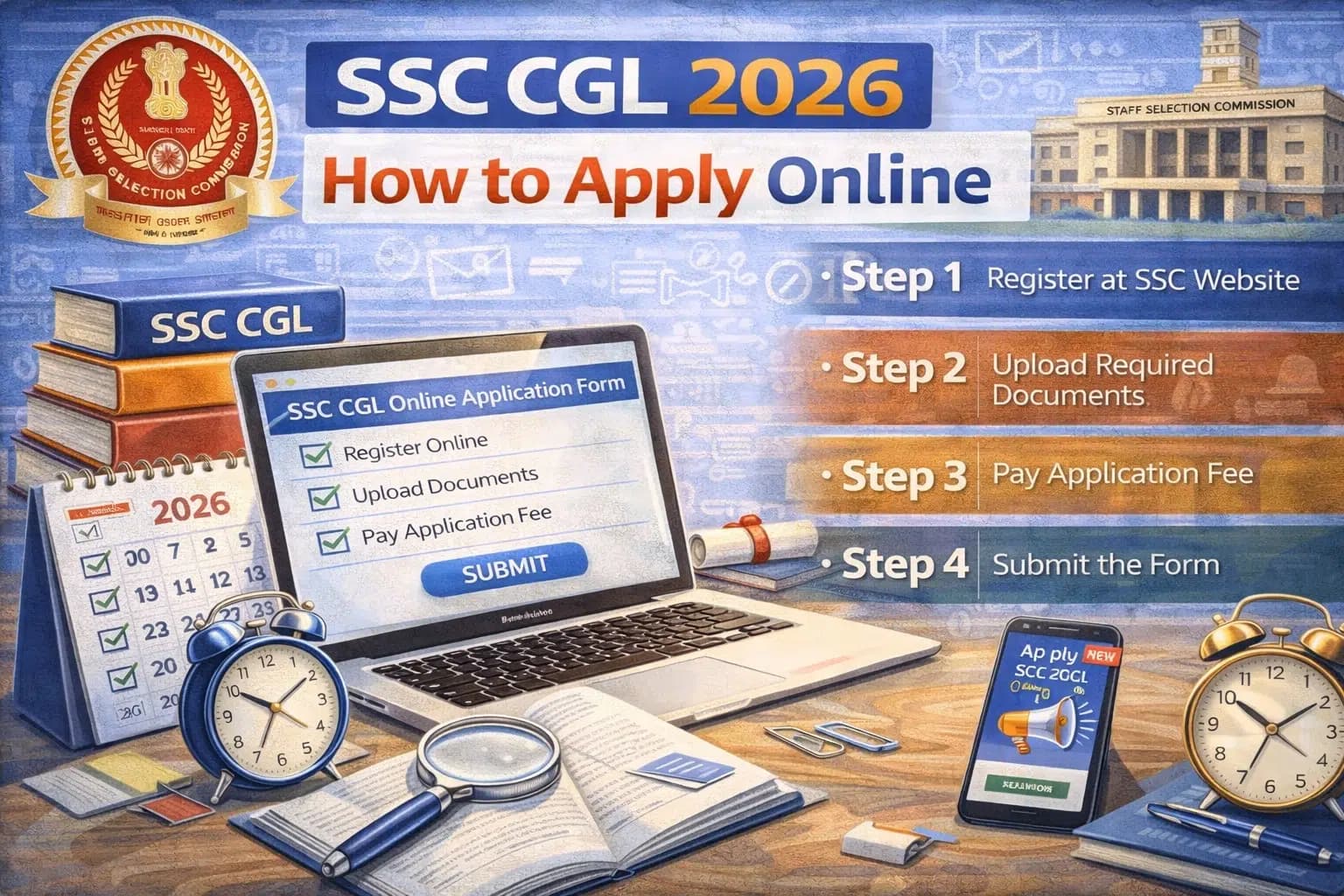
The SSC CGL online application process is your gateway to appearing for one of India's most prestigious government job examinations. With the SSC CGL Notification 2026 expected in March, candidates should prepare themselves for a smooth and error‑free application submission. This comprehensive guide walks you through every step of the SSC CGL 2026 application process, from registration to final submission, ensuring you complete it successfully without any complications.
Ready to Ace Your Exam?
Practice with our comprehensive test series designed by experts. Get detailed solutions, performance analytics, and boost your preparation.
Explore Test SeriesWhen Will SSC CGL 2026 Application Start?
Based on the official SSC Exam Calendar 2026‑27, the Combined Graduate Level Examination 2026 notification is expected to be released in March 2026. The online application will open on the same day as the notification release.
Expected Application Timeline:
Notification Release Date: March 2026 (tentative)
Application Start Date: Same day as notification (expected in March 2026)
Application Closing Date: Approximately 30 days from start (expected in April 2026)
Last Date for Fee Payment: Usually 1‑2 days after application closing date
Correction Window: Typically 3‑5 days after application closure
Once the notification is released, candidates typically get around 30 days to complete their application. However, applying early is always advisable to avoid last‑minute technical issues and server problems.
Before You Start: Essential Prerequisites
Completing your SSC CGL application smoothly requires proper preparation before you begin the actual process.
Verify Your Eligibility
Before investing time in application, confirm you meet all SSC CGL Eligibility Criteria 2026 requirements including educational qualification, age limit for your desired posts, and nationality requirements.
Creating an application when you are not eligible wastes your effort and application fee. Check the official notification carefully for post‑specific eligibility requirements.
Gather Required Documents
Having all necessary documents ready before starting ensures uninterrupted application completion.
Educational Documents:
10th standard certificate and mark sheet showing your date of birth
12th standard certificate and mark sheet
Graduation degree certificate or provisional certificate if degree is not yet issued
All semester or year‑wise mark sheets from graduation
Additional qualification certificates if any (post‑graduation, professional courses)
Identity Proof:
Aadhaar card is the most widely accepted and preferred document
Alternatively, Voter ID card, PAN card, Driving License, or Passport can be used
Ensure the photo ID is valid and not expired
Category Certificates (If Applicable):
OBC Non‑Creamy Layer certificate for current financial year 2025‑26 in prescribed central government format
SC or ST certificate from competent authority
EWS (Economically Weaker Section) certificate for current financial year showing family income below 8 lakhs annually
PwBD (Persons with Benchmark Disabilities) certificate from medical board showing minimum 40% disability
Scanned Documents for Upload:
Recent passport‑size colored photograph with white background, size 4‑50 KB, JPG or JPEG format, dimensions approximately 3.5 cm by 4.5 cm
Signature specimen on white paper with black or blue pen, size 1‑20 KB, JPG or JPEG format, dimensions approximately 2 cm by 5 cm
All documents should be clearly scanned without blur, proper alignment, and within specified file size limits. Poor quality uploads lead to rejection during document verification stage.
Technical Requirements
Hardware Needed:
Computer or laptop with stable internet connection for smooth application process
Scanner or smartphone with good camera for scanning documents
Printer for taking application confirmation printout after submission
Software Requirements:
Updated web browser like Google Chrome, Mozilla Firefox, Microsoft Edge, or Safari
PDF reader for viewing downloaded confirmation and admit card
Basic image editing software for resizing photographs and signatures if needed (optional)
Internet Connection:
Stable broadband or WiFi connection is recommended over mobile data
Avoid public WiFi for security reasons when making payment
Ensure sufficient data balance if using mobile internet
Payment Arrangements
Application Fee Structure:
General, OBC, and EWS category male candidates must pay Rs. 100 application fee
Female candidates of all categories are completely exempted from fee payment
SC, ST, PwBD, and Ex‑Servicemen candidates are also exempted from paying application fee
Payment Modes Available:
Online payment through Net Banking from any bank
Debit Card (Visa, Mastercard, RuPay, Maestro)
Credit Card (Visa, Mastercard)
UPI payment using any UPI app or ID
SBI Challan for offline cash payment at any State Bank of India branch
Keep your payment details, bank account, card details, or UPI ID ready before starting the application to complete payment smoothly.
SSC CGL Online Application Process Step‑by‑Step
The application process is conducted entirely online through the official SSC website. Follow these detailed steps for successful completion.
Step 1: One‑Time Registration (For First‑Time Applicants)
If you have never applied for any SSC examination before, you must first complete One‑Time Registration creating permanent credentials for all future SSC exams.
Access the Portal:
Visit the official SSC website at ssc.gov.in or directly go to ssc.nic.in
Look for the "Login" option on the homepage
Click on "Register Now" if you are a new user
Fill Basic Registration Details:
Enter your full name exactly as per your 10th standard certificate without any spelling mistakes
Provide father's full name and mother's full name
Enter your date of birth in DD/MM/YYYY format matching your 10th certificate
Select your gender (Male, Female, or Transgender)
Provide your active email ID which you check regularly
Enter your 10‑digit mobile number for OTP verification
Create a strong password containing uppercase, lowercase, numbers, and special characters
Choose a security question and provide answer for password recovery
Verification Process:
After submitting registration details, you will receive OTP on registered mobile number
Enter the mobile OTP within the time limit (usually 10‑15 minutes)
You will also receive a verification email with a link on your registered email address
Click on the email verification link to activate your account
Save Your Credentials:
After successful verification, a unique registration number or user ID is generated
Save this registration number, password, and security question answer securely
These credentials will be used for all future SSC examinations, not just CGL
Note for Repeat Applicants:
If you have previously registered for any SSC exam (CGL, CHSL, MTS, GD, etc.), you can use the same login credentials. No need to register again.
Step 2: Login to SSC Portal
Once One‑Time Registration is complete or if you are an existing user, login to the SSC portal.
Login Process:
Visit ssc.gov.in or ssc.nic.in
Click on "Login" option
Enter your Registration Number or Email ID
Enter your password
Type the displayed captcha code carefully
Click on "Sign In" button
Dashboard Access:
After successful login, you reach your candidate dashboard
Here you can see all active examinations and your application status
Look for "Combined Graduate Level Examination 2026" notification
Click on "Apply" button next to SSC CGL 2026 notification
Step 3: Fill Application Form Part 1 (Personal and Educational Details)
The SSC CGL application form is divided into multiple parts. Part 1 captures your personal, contact, and educational information.
Personal Information Section:
Your name is auto‑filled from registration and cannot be changed
Father's name and mother's name are also pre‑filled
Date of birth is displayed from registration data
Select your gender if not already filled
Choose your category: General, OBC, SC, ST, EWS, or Ex‑Servicemen
If selecting OBC, confirm whether you belong to Creamy Layer or Non‑Creamy Layer (only Non‑Creamy Layer gets reservation benefits)
For EWS category, confirm you have valid income certificate
Contact Details:
Your registered email and mobile number appear automatically
Provide your complete postal address with house number, street, locality, landmark
Enter PIN code (6 digits)
State and district get auto‑populated based on PIN code or can be selected manually
Provide alternative email ID (optional but recommended)
Provide alternative mobile number (optional but useful for backup communication)
Educational Qualification Details:
10th Standard Information:
Board name (CBSE, State Board, ICSE, etc.)
Year of passing
Roll number or registration number
Total marks obtained and maximum marks
Percentage or CGPA
12th Standard Information:
Board name
Year of passing
Roll number
Marks obtained
Percentage
Graduation Details:
Degree obtained (BA, BSc, BCom, BTech, MBBS, etc.)
University name
College name
Year of passing or expected year if final year
Roll number or registration number
Marks obtained in graduation
Percentage or CGPA
Division or class (First, Second, Third)
For Final Year Students:
Select "Result Awaited" or "Appearing" status
You must submit final degree certificate during document verification
Failing to produce degree leads to disqualification
Additional Qualifications:
If you have post‑graduation, professional courses, or additional qualifications, enter those details in relevant sections
These may give preference for certain posts
Step 4: Fill Application Form Part 2 (Examination Preferences)
This section captures your preferences regarding exam center and posts.
Exam Center Selection:
SSC CGL is conducted at multiple centers across India
You can select up to 3 exam center preferences in order of priority
First preference: Choose the city where you are preparing or residing for convenience
Second preference: Select a nearby major city as backup
Third preference: Any other convenient location
Available Exam Centers:
Northern region cities include Delhi, Lucknow, Jaipur, Chandigarh, Dehradun, Shimla, Jammu, and others
Eastern region includes Kolkata, Patna, Ranchi, Bhubaneswar, Guwahati, Agartala, and more
Western region covers Mumbai, Ahmedabad, Pune, Nagpur, Surat, Indore, Bhopal, and nearby cities
Southern region comprises Bengaluru, Chennai, Hyderabad, Thiruvananthapuram, Kochi, Visakhapatnam, Vijayawada, and others
Important Points About Center Selection:
Final center allotment depends on availability and is done on first‑come‑first‑serve basis
Applying early increases chances of getting preferred center
Once allotted, exam center cannot be changed
Choose centers carefully considering travel time, accommodation, and familiarity
Post Preferences:
You can select multiple posts for which you want to apply provided you meet eligibility for each
Arrange posts in order of your preference with most desired post first
Post preference can be modified later during Detailed Application Form (DAF) stage before Mains exam
Popular posts include Assistant Section Officer, Inspector, Tax Assistant, Auditor, Junior Statistical Officer, and others
Different posts have different pay scales, job profiles, age limits, and educational requirements mentioned in the notification
Step 5: Upload Required Documents
After filling all details, you need to upload scanned copies of photograph, signature, and certificates.
Photograph Upload:
Click on "Choose File" or "Browse" button for photograph
Select your scanned photograph from computer
Ensure file meets specifications: JPG or JPEG format, 4‑50 KB size, colored photo on white background
Preview the uploaded photograph to check clarity
If photo is blurred, too dark, too light, or unclear, re‑scan and upload again
Photograph Guidelines:
Recent photograph taken within last 3 months
Face clearly visible covering 70‑80% of photo area
No sunglasses, caps, or headgear unless religious reasons
Formal attire preferred
Clear white or light colored background
Avoid shadows on face or background
Signature Upload:
Sign on a plain white paper with black or blue pen
Write your full signature clearly, not just initials
Scan the signature or take clear photo maintaining specified dimensions
Upload ensuring file is JPG or JPEG format, 1‑20 KB size
Preview uploaded signature for clarity and legibility
Signature Guidelines:
Signature should be same as you will use on admit card and all future correspondence
Cannot be changed later, so upload carefully
If signature is illegible, it may be rejected during verification
Don't use very fancy or artistic signatures that cannot be reproduced consistently
Category Certificate Upload (If Applicable):
OBC candidates upload Non‑Creamy Layer certificate
SC or ST candidates upload caste certificate
EWS candidates upload income and asset certificate
PwBD candidates upload disability certificate
Ensure certificates are in PDF or JPG format within size limits
All certificates must be valid and issued by competent authority in prescribed format
Step 6: Preview and Verify Application
Before final submission, carefully preview your complete application to check for any errors.
Generate Preview:
Click on "Preview Application" or "Submit" button which generates preview page
This page shows all information you entered along with uploaded documents
Verification Checklist:
Check personal details: Name spelling, father's name, mother's name, date of birth
Verify contact information: Address, PIN code, state, district, email, mobile number
Review educational details: Marks, percentages, years, board and university names
Confirm category selection and exam center preferences
Check uploaded photograph: Clearly visible, recent, meeting specifications
Verify signature upload: Clear, legible, matching specifications
Review post preferences if selected
Edit if Necessary:
If you find any error or want to make changes, go back to respective sections using edit option
Modify the incorrect information
Re‑upload documents if needed
Generate preview again and verify changes
Print Preview:
Take a printout or PDF of preview page for your reference
This helps during document verification to remember what you filled
Step 7: Final Submission
Once satisfied with all details after thorough verification, proceed to final submission.
Declaration and Undertaking:
Read the declaration statement carefully which mentions that all information provided is correct
Tick the checkbox confirming you have read and agreed to the declaration
This declaration is legally binding and false information can lead to disqualification and legal action
Click Submit:
Click on "Final Submit" button to complete form submission
A confirmation message appears confirming successful application submission
Your application is now locked and cannot be edited except during correction window if provided
Note Your Application Number:
After submission, a unique application number is generated and displayed
This application number is different from your registration number
Note this application number carefully as it will be needed for all future references
Save or screenshot the confirmation page showing application number
Step 8: Payment of Application Fee
After form submission, proceed to fee payment if applicable to your category.
Fee Payment Section:
Click on "Proceed to Payment" or "Pay Application Fee" button
You are redirected to payment gateway
Select your preferred payment mode from available options
Online Payment Process:
For Net Banking:
Select your bank from dropdown list
You are redirected to your bank's website
Login with your internet banking credentials
Authorize the payment of Rs. 100
After successful payment, you return to SSC website
For Debit or Credit Card:
Enter card number (16 digits)
Enter cardholder name as on card
Select expiry month and year
Enter CVV number (3 digits on back of card)
Click on "Make Payment"
Enter OTP received on registered mobile number
Payment is processed
For UPI Payment:
Select UPI option
Scan QR code displayed using any UPI app OR enter your UPI ID
Approve payment in your UPI app
Payment confirmation appears on screen
For SBI Challan (Offline Payment):
Select "Generate SBI Challan" option
Download and print the challan form
Visit any State Bank of India branch
Submit challan and pay Rs. 100 in cash
Collect stamped receipt from bank
Login to SSC portal again and update payment details by entering challan number and payment date
Bank verifies payment (takes 1‑2 days)
Payment Confirmation:
After successful payment, a transaction ID or payment reference number is generated
Save this transaction ID carefully
Take screenshot of payment success page
Download payment receipt PDF if available
Note the date and time of payment
For Exempted Candidates:
If you belong to exempted category (Female, SC, ST, PwBD, Ex‑Servicemen), select "Exempted Category" option
No payment is required
Proceed directly to downloading confirmation
Step 9: Download Application Confirmation
After successful submission and payment, download your final application confirmation.
Confirmation Page:
After payment confirmation, you are redirected to final confirmation page
This page contains all your application details with application number prominently displayed
Download Confirmation PDF:
Click on "Download Confirmation" or "Print Application" button
A PDF file is generated containing complete application summary
Save this PDF in multiple locations: computer, email, cloud storage, mobile
Print at least 3‑4 copies of confirmation page
Confirmation Page Contains:
Unique application number
Applicant's name and photograph
Father's and mother's name
Date of birth, category, gender
Educational qualification summary
Exam center preferences
Post preferences
Payment details with transaction ID (if payment was required)
Application submission date and time
Important instructions
Barcode for verification
Keep Copies Safe:
Keep printed copies in safe place
One copy for your records
One for carrying on exam day (when admit card is downloaded)
Backup digital copy in email and cloud storage
Share application number with family member for safety
Email Confirmation:
You receive confirmation email on registered email address
Save this email for future reference
Check spam or junk folder if you don't receive it in inbox
SMS Confirmation:
SMS with application number is sent to registered mobile number
Save this SMS
Step 10: Correction Window (If Provided)
SSC usually provides a correction window for 3‑5 days after application closure for candidates to modify certain details.
When Correction Window Opens:
SSC announces correction window dates on official website
Typically opens 2‑3 days after application deadline
Remains open for 3‑5 days
What Can Be Corrected:
Exam center preferences can be changed
Category selection can be modified with proper justification
Photograph and signature can be re‑uploaded if poor quality
Contact details like email and mobile number can be updated
Some personal details may be editable subject to SSC rules
What Cannot Be Corrected:
Name once submitted usually cannot be changed
Date of birth is generally non‑editable
Gender cannot be modified
Educational qualification details are mostly locked
How to Make Corrections:
Login to SSC portal during correction window
Look for "Correction Window" or "Edit Application" link for SSC CGL 2026
Click on the link to access correction facility
Make necessary changes in editable fields
Re‑upload documents if allowed
Save and submit corrections
Download revised confirmation page
New confirmation with modification details is generated
Note that not all details can be modified, and SSC decides which fields are editable during correction window.
After Application Submission
Stay Updated with Official Communications
After successful application, stay connected with SSC for important updates and announcements.
Regular Checks:
Visit ssc.gov.in regularly for exam‑related notifications
Check email inbox and spam folder daily for official communications
Monitor SMS on registered mobile number
Follow SSC official social media handles if any
Important Communications:
Exam city intimation: Information about your allotted exam city
Admit card availability: Notification when admit card is ready for download
Exam day instructions: Important guidelines and dos and don'ts
Result declarations: Tier 1, Tier 2, final result announcements
Document verification call: Schedule and venue for certificate verification
Admit Card Download
The admit card for SSC CGL Tier 1 exam is released approximately 7‑10 days before the examination date.
When to Download:
Expected release: Mid‑May 2026 (if exam is in late May‑June 2026)
SSC sends email and SMS notification when admit card is available
How to Download Admit Card:
Visit ssc.gov.in or regional SSC website
Click on "Download Admit Card" link for SSC CGL Tier 1 2026
Enter your registration number or roll number
Enter your date of birth or password
Enter captcha code
Click on "Submit" or "Download"
Admit card PDF is generated
Verify Admit Card Details:
Name and photograph
Exam date and session timings
Reporting time (usually 30‑60 minutes before exam)
Exam center address with exact venue details
Roll number
Exam day instructions
List of permitted and prohibited items
Print Multiple Copies:
Print at least 3‑4 colored copies of admit card
Colored print is preferred though black and white is also acceptable
Keep copies in safe place
Carry original admit card on exam day along with photo ID
Continue Preparation
Don't relax after application submission. The real work begins now. Follow a structured SSC CGL Preparation Strategy 2026 to make optimal use of remaining time before examination.
Understanding the complete exam pattern and syllabus helps you prepare more effectively. Regular mock tests, thorough revision, and focused practice in weak areas can significantly improve your score.
Common Application Mistakes to Avoid
Learning from common errors helps you submit error‑free application.
Personal Details Errors:
Wrong name spelling that doesn't match 10th certificate creates issues during verification
Incorrect date of birth leads to age‑related eligibility problems later
Wrong category selection or claiming benefits without valid certificate results in disqualification
Contact Information Mistakes:
Using inactive or inaccessible email address means missing important communications
Providing wrong mobile number prevents receiving OTPs and updates
Not having alternative contact details creates problems if primary becomes inactive
Document Upload Errors:
Poor quality photograph that is blurred, too dark, or has shadows gets rejected
Signature that is illegible or doesn't match on exam day creates verification issues
Oversized or undersized files that don't meet specifications fail to upload
Wrong file format upload (PDF instead of JPG or vice versa) causes rejection
Application Process Mistakes:
Last‑minute application on closing day risks server problems and technical glitches
Not reading instructions carefully leads to wrong entries
Rushing through application without verification results in errors discovered later
Not saving confirmation or payment receipt leaves no proof in case of disputes
Payment Related Mistakes:
Making payment before form submission (payment should be after submission)
Not saving transaction ID after successful payment creates problems if confirmation doesn't generate
Using unreliable payment methods causing transaction failures
Not updating offline payment details (SBI challan) on portal after bank payment
Troubleshooting Common Issues
Technical problems can occur during application. Knowing how to handle them prevents panic.
Issue: Unable to Complete OTP Verification
Check mobile network signal strength
Verify mobile number entered correctly during registration
Wait 5‑10 minutes before requesting OTP resend
Check message inbox and spam folder
Ensure DND is not activated on your number
Try alternative verification method if available
Issue: Payment Deducted But Confirmation Not Received
Wait for 24‑48 hours as sometimes confirmation is delayed
Check your bank statement to confirm deduction
Note transaction reference number from bank statement
Contact SSC helpdesk with payment proof
Do not make duplicate payment immediately
Issue: Unable to Upload Documents
Check file size is within specified limits (compress if too large)
Verify file format is correct (JPG for photo and signature, PDF for certificates)
Ensure image is clear without blur
Try different browser if upload fails repeatedly
Clear browser cache and cookies
Use image editing software to resize if needed
Issue: Form Submission Error or Technical Glitch
Clear browser cache, cookies, and history
Try different browser (Chrome, Firefox, Edge)
Use incognito or private browsing mode
Check internet connection stability
Try accessing portal at non‑peak hours (early morning or late night)
Contact technical helpdesk if problem persists
Issue: Forgot Password
Click on "Forgot Password" link on login page
Enter registered email ID or mobile number
Follow password reset instructions sent via email or SMS
Create new strong password
Login with new credentials
Helpdesk and Support
SSC provides helpdesk support for addressing candidate queries and technical issues.
SSC Helpdesk Contact:
Check official SSC website for current helpline numbers and email IDs
Helpdesk is operational during application period on working days
Email support typically responds within 2‑3 working days
Before Contacting Helpdesk:
Have your registration number and application number ready
Note exact error message or screenshot the issue
Mention browser and device you are using
Clearly explain the problem in brief
Types of Queries:
Technical issues: Login problems, upload errors, payment failures
Application‑related: Eligibility doubts, form filling queries
Post‑application: Admit card, exam center, result queries
Always prefer written communication (email) over phone for documentation of your query and response.
Frequently Asked Questions
Q: Can I edit my application after final submission?
Only during correction window if provided by SSC. Otherwise, application cannot be edited after final submission.
Q: What if I make a mistake in my name or date of birth?
Minor errors may be corrected during correction window. Major discrepancies require written representation to SSC with documentary proof.
Q: Can I apply for SSC CGL if I am in final year?
Yes, final year students can apply provisionally but must submit degree certificate during document verification.
Q: Is it mandatory to pay fee online?
No, offline payment through SBI challan is also available, though online payment is more convenient.
Q: What if I lose my application number?
Application number can be retrieved by logging into SSC portal with your registration credentials or from confirmation email.
Q: Can I change exam center after application?
Only during correction window if SSC allows exam center modification. After that, no changes are possible.
Q: How many posts can I apply for in single application?
You can select multiple posts for which you meet eligibility criteria in one application form itself.
Q: What if my category certificate expires during selection process?
You must provide valid certificate at time of document verification. Renew expired certificates beforehand.
Q: Can I apply from mobile phone?
Yes, though laptop or desktop is recommended for better experience, easier document upload, and payment.
Q: What happens if I don't receive admit card?
Admit card can be downloaded from SSC website. If technical issue persists, contact SSC helpdesk immediately.
Important Reminders
Apply Early:
Don't wait for last day to apply
Technical glitches common on final days due to heavy traffic
Applying early ensures preferred exam center allotment
Double Check Everything:
Verify each entry before moving to next section
Match all details with original certificates
Review complete application in preview before submission
Save All Proofs:
Keep confirmation page PDF safely
Save payment receipt and transaction ID
Take screenshots of important pages
Keep Documents Ready:
Original certificates will be needed during document verification
Keep them safe and accessible
Start collecting certificates now if not already arranged
Stay Updated:
Regularly check official SSC website
Monitor registered email and mobile
Follow exam‑related notifications promptly
The SSC CGL online application process is straightforward when approached systematically with proper preparation. Understanding each step, arranging required documents beforehand, and filling the form carefully ensures error‑free submission.
With the notification expected in March 2026, start preparing your documents now. Verify your eligibility criteria, complete One‑Time Registration if you're first‑time applicant, and be ready to apply immediately when notification releases.
Apply early to avoid last‑minute rush and ensure preferred exam center. Save all confirmations, payment proofs, and application details safely for future reference. Keep your application number accessible as it will be needed throughout the selection process.
Once application formalities are complete, shift complete focus to strategic preparation following proven preparation strategies. Understanding the complete exam pattern and syllabus helps you prepare more effectively.
Remember, successful application is just your entry ticket to the examination hall. Real success depends on thorough preparation, consistent practice, and strong performance in Tier 1 and Tier 2 examinations.
Apply carefully, prepare diligently, and your SSC CGL dream will become reality!
Note: Application process details are based on standard SSC procedures. For official and updated guidelines, refer to SSC CGL 2026 notification when released at ssc.gov.in.
Ready to Ace Your Exam?
Practice with our comprehensive test series designed by experts. Get detailed solutions, performance analytics, and boost your preparation.
Explore Test Series